
Broken links quietly damage your site. They frustrate users, harm SEO, and can even hide deeper server issues.
OtterFixer Broken Link Finder is a lightweight WordPress plugin that scans your site for broken internal links and error pages, then gives you a clear list of what needs fixing.
No ads. No tracking. No bloat. Just a tool I use myself when fixing sites.
What this plugin does
OtterFixer Broken Link Finder scans your WordPress site and checks internal links found in:
- Posts
- Pages
- Navigation menus
Each link is tested and categorised so you can quickly see what’s broken and why.
It highlights:
- 404 / 410 links that no longer exist
- 403 links that are blocked or restricted
- 500 / 502 / 503 server errors
- 301 / 302 redirects that may need cleaning up
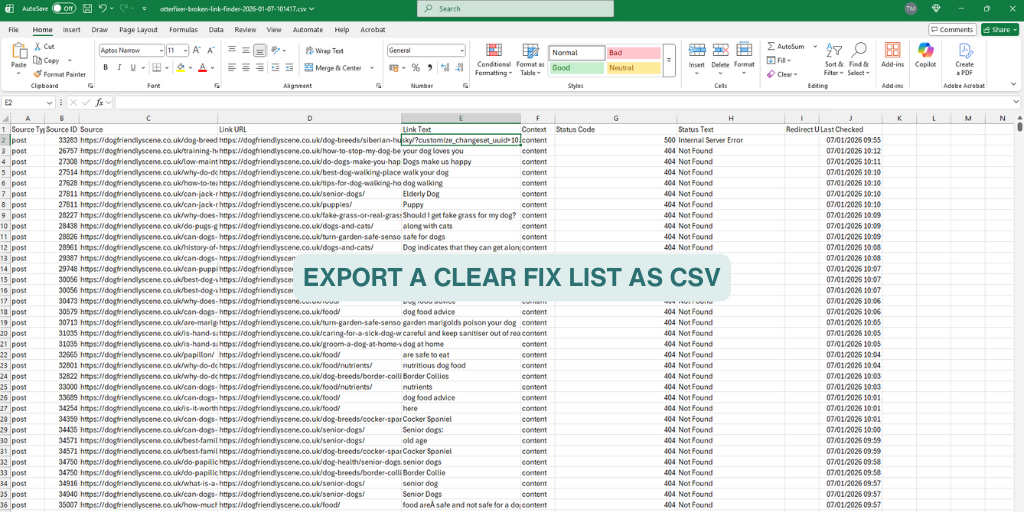
Results are stored locally in your WordPress database and can be exported as a CSV fix list.
Why broken links matter
Broken links are more than just annoying.
They can:
- Hurt user trust and engagement
- Waste crawl budget and impact SEO
- Mask deeper problems like plugin conflicts or server errors
- Create dead ends on important pages
Server errors (500s) are especially important, as they often point to theme or plugin issues that need attention.
Download
You can download and install the plugin like any standard WordPress plugin.
Clicking the download button will save a ZIP file you can upload to your site.
OtterFixer Broken Link Finder is completely free to download and use.
No sign-up.
No licence keys.
No data leaving your site.
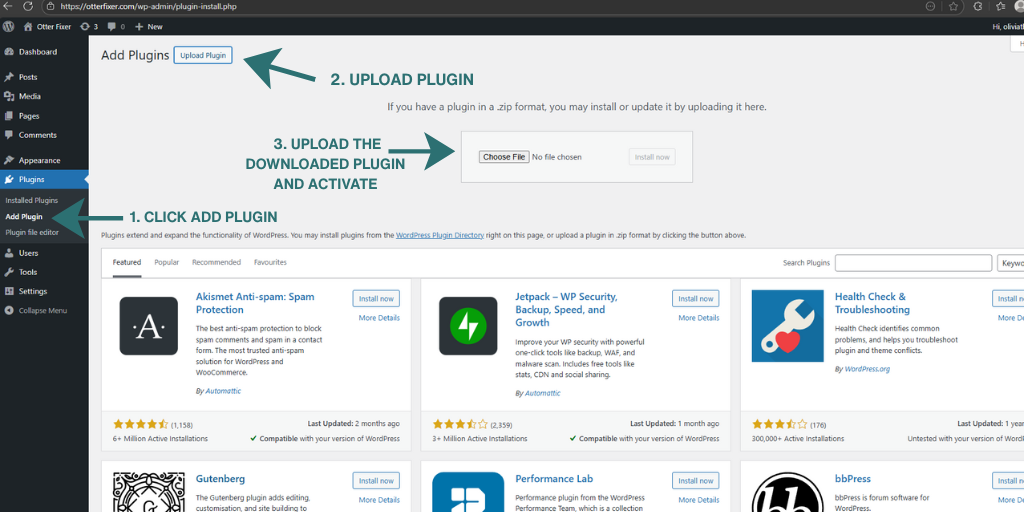
How it works
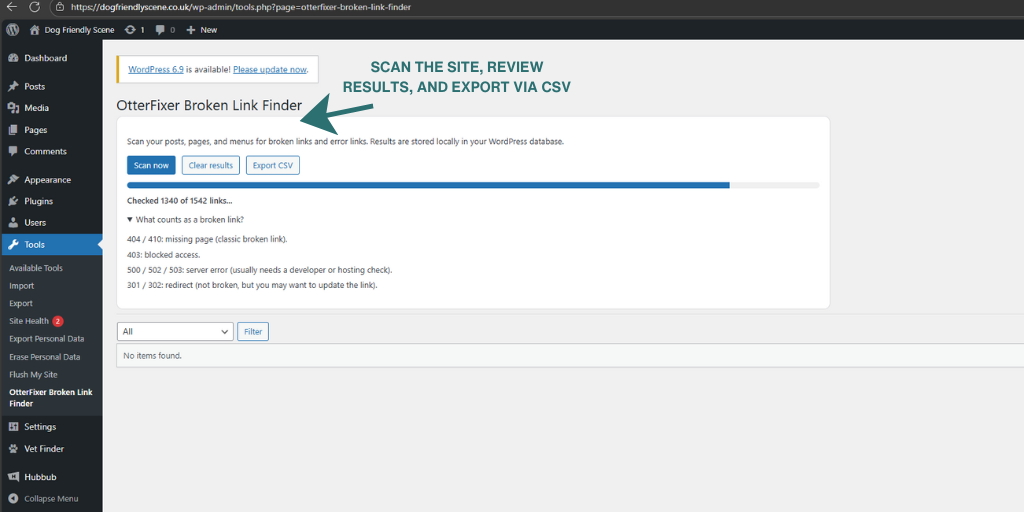
- Install and activate the plugin
- Go to Tools → OtterFixer Broken Link Finder
- Click Scan now
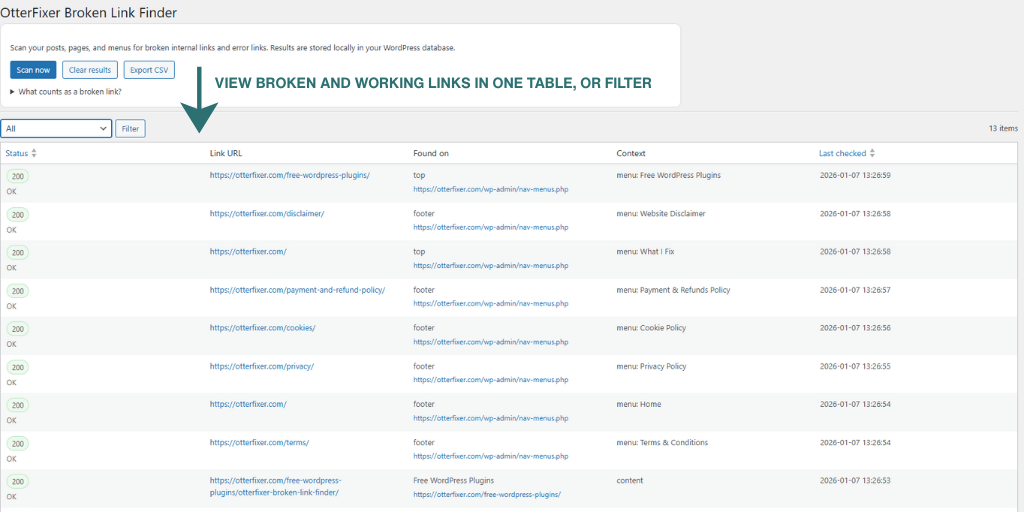
- Review the results table
- Export a CSV or start fixing
Scans run manually, so nothing is crawling your site in the background without you knowing.
What makes it different
- Internal links only (safe for shared hosting)
- No third-party services or tracking
- No constant background scans
- Built for real-world site fixing, not vanity metrics
- Lightweight and easy to remove
This is not an “SEO dashboard”. It’s a practical diagnostic tool.
Who it’s for
- Site owners who want to clean up broken links
- Developers and fixers diagnosing problem pages
- Anyone seeing unexplained 404s or 500 errors
- WordPress users who want clear, exportable results
Frequently Asked Questions
What does OtterFixer Broken Link Finder do?
OtterFixer Broken Link Finder scans your WordPress site for internal links that return error responses (such as 404, 403, or 500), as well as redirects. It then shows you a clear list and lets you export it as a CSV so you can fix issues quickly.
What counts as a broken link?
The plugin flags the most common link issues:
- 404 / 410: missing page (classic broken link)
- 403: blocked access
- 500 / 502 / 503: server error (usually needs a developer or hosting check)
- 301 / 302: redirect (not broken, but you may want to update the link)
Where can I see the results?
After a scan, results appear in a table inside WordPress under Tools → OtterFixer Broken Link Finder. You can filter by type and export everything as a CSV.
Will this plugin slow down my site?
No. The plugin only runs when you click Scan now. It does not run background scans or constantly crawl your site.
Does it scan external links too?
Not at the moment. This version focuses on internal links to keep scanning fast and safe, especially on shared hosting.
Can it fix the broken links for me?
Not yet. The plugin identifies and reports the problem links so you can fix them quickly in your content or menus. It is designed to keep things lightweight and simple.
How often should I run a scan?
A good routine is once a month, and also after major site changes like migrations, theme changes, or URL structure updates.
Built in-house at OtterFixer by Olivia 🦦
Lightweight tools I use when fixing sites.