
Keep track of every plugin on your WordPress site
Managing plugins on a WordPress site can quickly become confusing. A plugin is installed for a good reason at the time, but months later, it is not always clear why it is there, who added it, or whether it is still needed.

OtterFixer Organised Plugin Notes solves this problem by letting you add clear, private notes to every plugin directly inside the WordPress admin area.
What is OtterFixer Organised Plugin Notes?
OtterFixer Organised Plugin Notes is a lightweight WordPress plugin that helps you document every plugin installed on your site. Instead of guessing what a plugin does, you can add a short explanation, mark whether it is required by your theme, and note whether it is free or paid.
Everything is stored securely within WordPress and is only visible to the users you choose.
Why plugin notes matter
WordPress does not record why a plugin was installed. This often causes problems when you are:
- Cleaning up unused plugins
- Troubleshooting plugin conflicts
- Auditing a site for a client
- Handing a site over to another developer or team member
With Organised Plugin Notes, the reason for every plugin is always clear.
Key features
Add notes to each plugin
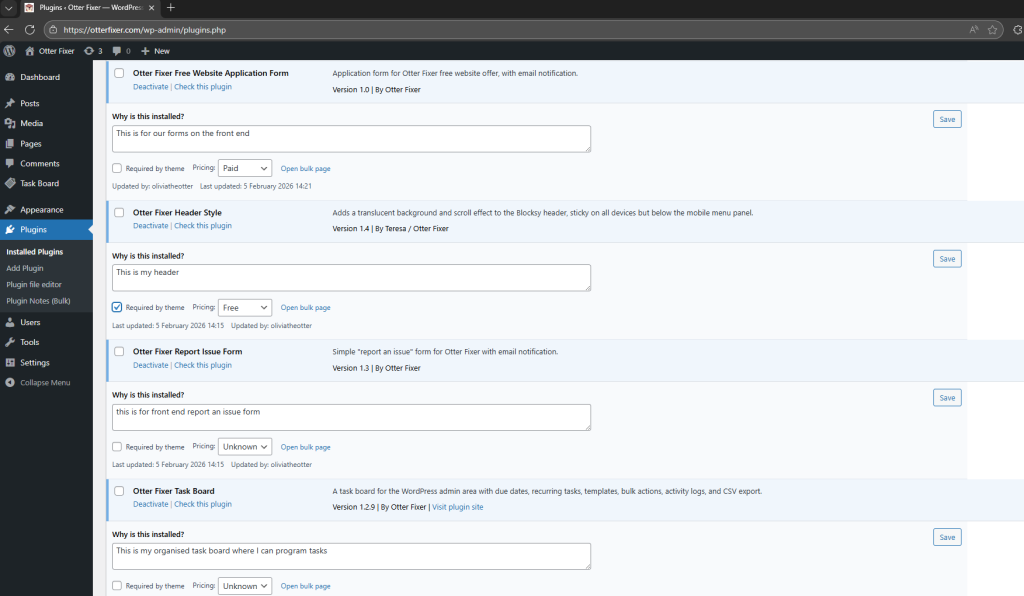
Write a short explanation for each plugin, such as:
- Required for Stripe payments
- Enables SVG uploads
- Used for site forms
Notes appear directly under each plugin on the Plugins page.
Mark plugins as required by the theme
Some plugins cannot be removed because the theme depends on them. You can mark these plugins as “Required by theme” so it is immediately clear they should not be disabled or deleted.
Free or paid plugin tracking
Label each plugin as free, paid, or unknown. This is especially useful for audits, renewals, and client handovers.
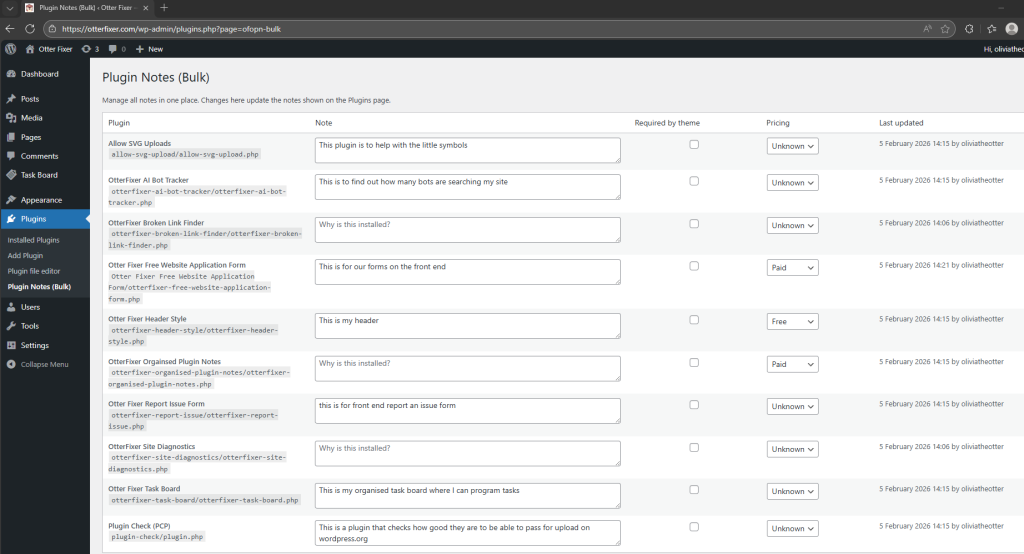
Bulk plugin notes page
Manage all plugin notes in one place using a clean bulk editor table. This makes it easy to review or update notes across the entire site.
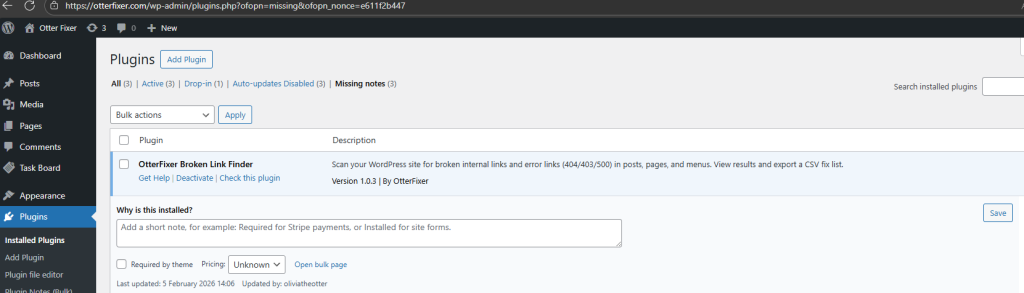
Missing notes filter
Quickly filter the Plugins page to show only plugins that do not yet have a note, so nothing is overlooked.
User and date tracking
Each note shows:
- When it was last updated
- Which user updated it
This helps teams stay accountable and organised.
How it helps in real situations
For agencies, it provides clear documentation for clients and reduces follow-up questions.
For developers, it prevents plugin confusion and speeds up troubleshooting.
For teams, it creates a shared understanding of what each plugin does and why it exists.
Installation
- Go to Plugins and Add New in your WordPress dashboard
- Upload and activate OtterFixer Organised Plugin Notes
- Visit the Plugins page and start adding notes under each plugin
- Use Plugins and Plugin Notes (Bulk) to manage all notes in one place if needed
Permissions and access
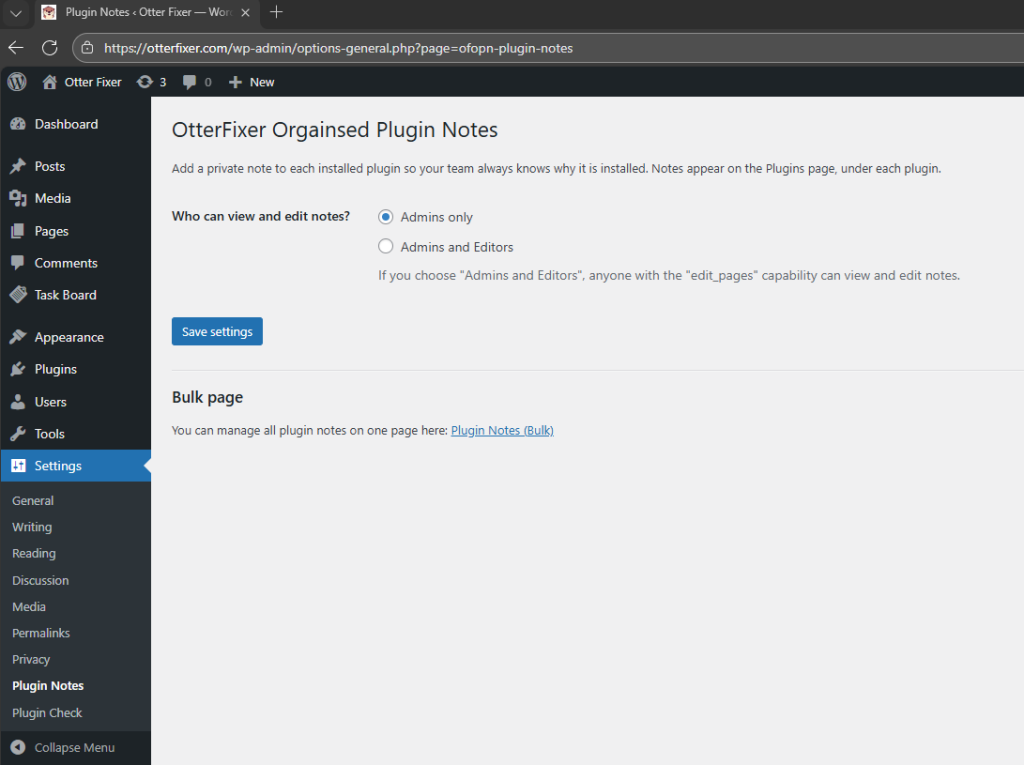
By default, only Administrators can view and edit plugin notes.
You can change this setting to allow Editors access via Settings and Plugin Notes.
Get started
If you manage WordPress sites regularly, OtterFixer Organised Plugin Notes will save time, reduce confusion, and make plugin management clearer and more professional.
Download it today and keep your WordPress plugins properly documented.
Frequently Asked Questions
Does WordPress already know why plugins were installed?
No. WordPress does not store the reason a plugin was added. This plugin lets you record that information as a private note against each plugin.
Who can see the notes?
By default, only Administrators can view and edit notes. You can change this in the settings to allow Editors too.
Can editors use the plugin notes?
Yes. In Settings and Plugin Notes, change the visibility option to Admins and Editors.
Where do the notes get saved?
Notes are stored in your WordPress database in the options table and are linked to each plugin file path. They are not sent to any third-party service.
Does this plugin affect the front end of my website?
No. It only runs in the WordPress admin area and only loads its scripts on the Plugins page.
Can I manage all notes in one place?
Yes. Use Plugins and Plugin Notes (Bulk) to view and edit notes, required by theme, and pricing for all plugins in one table.
What does Required by theme mean?
It is a manual flag you can tick when a plugin is needed for your theme or site layout to work properly, so it is clearer which plugins should not be removed.
What does Pricing mean?
Pricing is a simple label you can set to Free, Paid, or Unknown, which helps with audits, renewals, and tracking subscription plugins.